

For businesses on Microsoft 365
Planner is for your team's tasks. Requests need a front door.
Microsoft Planner, Lists and Forms can be wired into a request tracker, if someone builds and maintains the Power Automate flows. TicketStacker comes ready: a branded form, QR code and email address for each kind of request, with steps, rules and requester updates built in.
Free during the pilot · Sign in with Microsoft
The do-it-yourself version, and where it gets heavy
A typical Microsoft 365 request tracker: a Microsoft Form for intake, a List to track it, a Power Automate flow to connect them, and Planner or Outlook to nudge people. It works until:
The flow breaks
Someone renames a column or leaves the company, and requests quietly stop arriving.
Every request type is a project
Repairs, orders and time off each need their own form, list and flows.
Requesters hear nothing
Confirmations and updates are more flows to build.
Nothing enforces the process
A request can be marked done with the cost or details missing.
No ticket numbers
“Which one was that?” Row IDs aren't something you can tell a customer.
Reports take Excel work
Totals and turnaround times mean exporting and pivoting.
Microsoft 365 tools vs TicketStacker
| Planner / Lists + Forms | TicketStacker | |
|---|---|---|
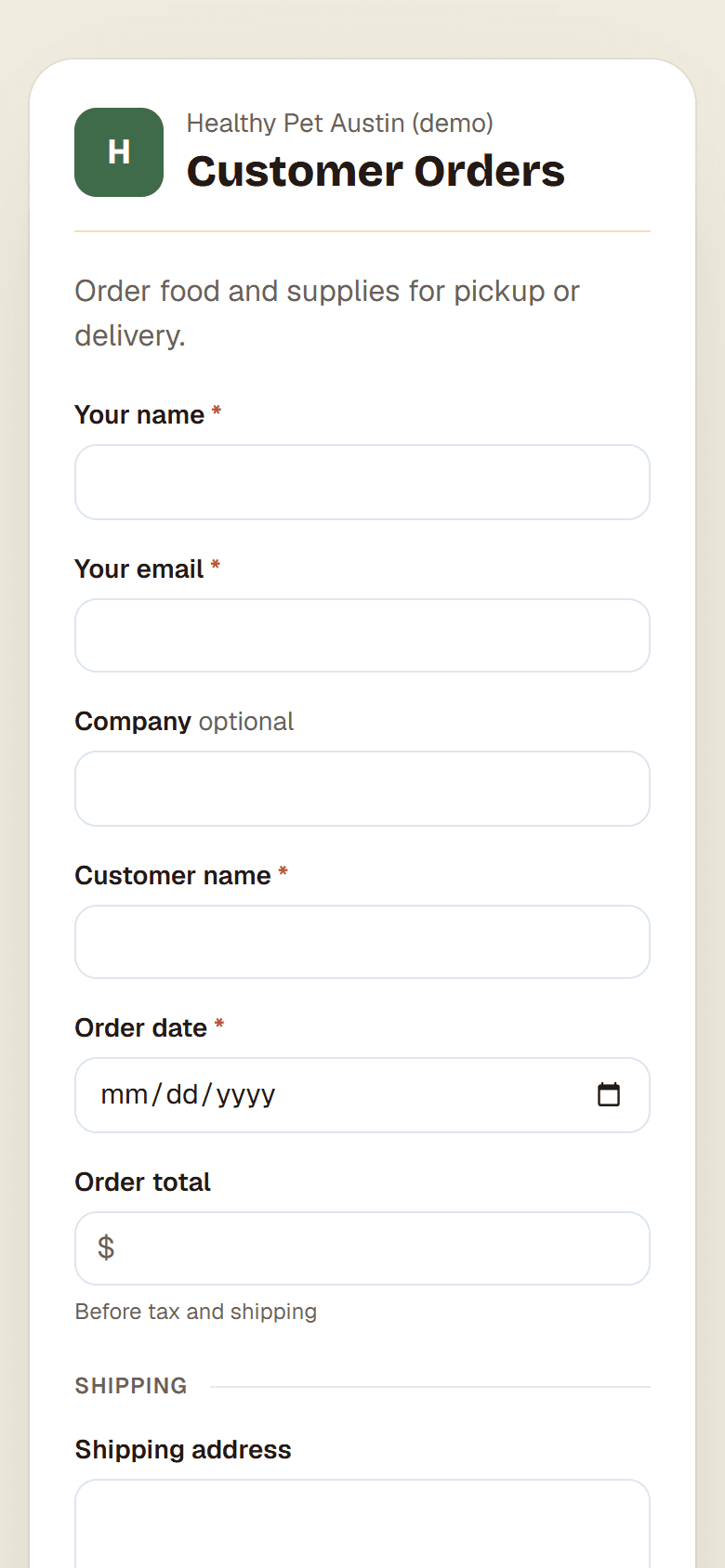
| Request form for anyone | Microsoft Forms, joined to a List with a flow | Built in, with your logo, QR code and website embed |
| Requests by email | A shared mailbox someone sorts | Each stack gets its own address; replies stay on the ticket |
| Fields per kind of work | A list per request type | A stack per request type, from a template |
| Steps and rules | Build them with flows | Built in: a ticket can't move on until it's ready |
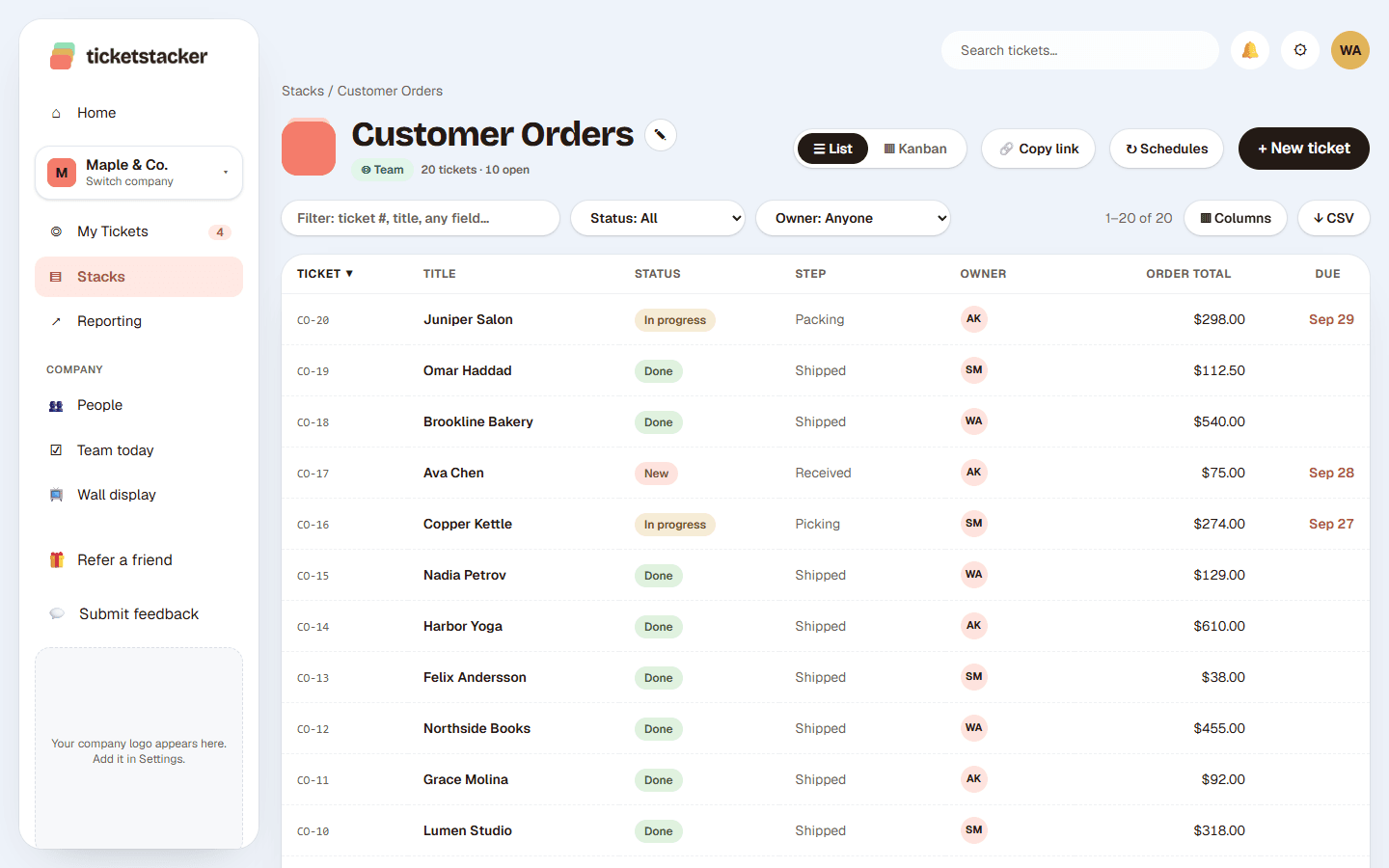
| Updates for the requester | Build them with flows | Built in, with a “track your request” page |
| Ticket numbers and reports | Row IDs; reports in Excel | IDs like FR-221; reports built in |
| Setup | Days of building, plus upkeep | An afternoon, from a template |
Fits alongside Microsoft 365
Sign in with Microsoft
Your team uses its Microsoft accounts; requesters don't need an account at all.
Bring your Excel tracker
Save it as CSV and import it. TicketStacker recognizes dates, money and emails, and nothing emails anyone during an import.
Keep Planner for projects
Use Planner for your team's own tasks and TicketStacker for requests from everyone else.
Set up in an afternoon
- 1
Pick a template
Facility requests, Customer orders, IT help, Purchase requests and more, with fields and steps ready.
- 2
Open the front door
Turn on the web form, print the QR code, or forward your shared mailbox to the stack's email address.
- 3
Invite your team
They sign in with Microsoft and see what's on their plate.
Questions
Do we need Power Automate or SharePoint?+
No. Forms, email intake, steps, rules and updates are all built in.
Can my team sign in with Microsoft?+
Yes. Microsoft, Google or email and password all work, and requesters don't need an account.
Can we import from Excel or Microsoft Lists?+
Yes. Export to CSV and import it; original dates are kept so your reports stay accurate.
What does it cost?+
It's free during the pilot, and pricing will stay simple when we launch.
See how it works, step by step
- How-to guide · 20 minutesSet up a simple IT help deskLet coworkers ask for help without seeing each other's requests, route everything to your IT person, and keep a record of every fix.
- Help articleSigning inGoogle, Microsoft or email and password, plus linking more than one, forgotten passwords and sign-in links.
- How-to guide · 1 afternoonMove from Google Sheets in an afternoonBring your tracking spreadsheet over, history and all, then switch the team over without a big announcement.